What's on your plate
What people asked of you, what you promised and what you're waiting on — and how each item closes.
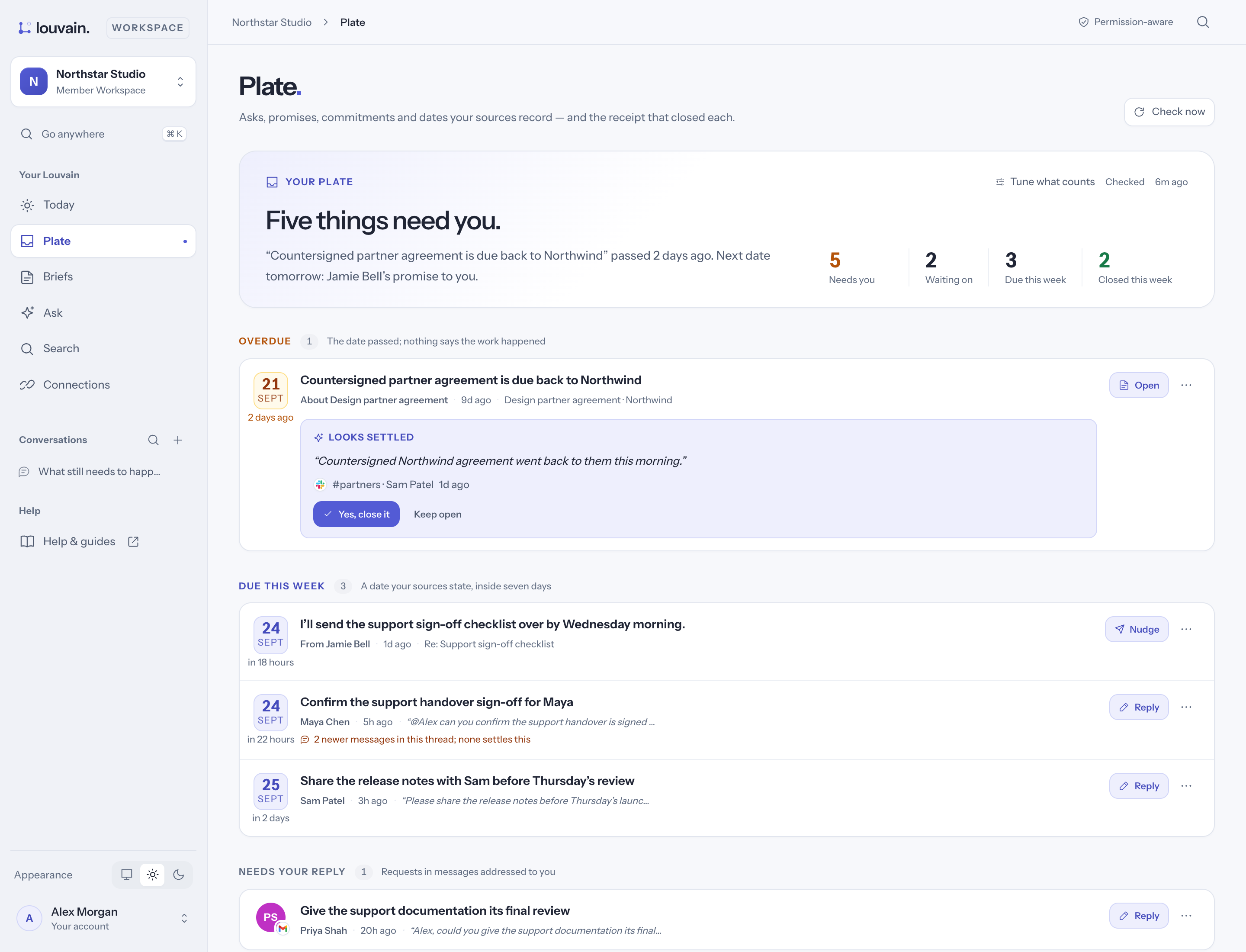
Plate lists what your sources have put on you. Nobody assigns anything here: an item opens when a message, a meeting or a document asks something of you, records a promise or sets a deadline. Each item keeps the words it came from.
What lands on it
Each item shows a small tag: Asked you, You asked, Promised you, You promised, Agreed, Open question, or a deadline or commitment on record. A due date appears only where the source gave one.
The plate is two lists, side by side (on a phone, two tabs):
- On you — what needs you.
- Waiting on others — what you asked for or were promised.
Each list puts late items first, then those with a date (soonest first), then starred ones, then the newest. Above them, Looks done lists the open items a later source says are done, each with the words that say so and Confirm / Not yet. Below, Done this week shows what closed, and what closed it.
How items close
- A later message settles it. When a later message, in any app you have connected, says the thing was done, the item shows Looks settled with that message's words and the app's mark. Choose Confirm, or Not yet. An ask in Slack can be settled by a reply in Gmail.
- Someone else says it's done. The item asks, for example "Maya says this is done — is that right?", with Confirm or Not yet.
- A file is shared. When someone shares the file you were waiting for, the item says so.
- You tick it. Tick the box to mark it done. To say why, choose Close with a note… in the item's ⋯ menu (or Close with note in its view): the other person on the item sees your note with your name, and is told.
- It isn't yours. Choose Not mine in the item's ⋯ menu.
A passed date is flagged, never closed. Closed by mistake? Open Done this week and choose Reopen. A quick back-and-forth that a reply settled before you ever saw it on your plate — a question answered a minute later — isn't listed there: it never needed you.
Clear it in one pass
Choose Clear beside the plate's count to go through it one item at a time: first what looks
done (Confirm or Not yet), then what is new since you last cleared, then what is late
(Done, Snooze, Not mine, Re-date, or Reply / Nudge). Hand on asks a
teammate to take a new or late item, as Ask someone to take this… does on the row. Skip moves
on and leaves the item as it is. On a phone, swipe a card right to mark it done (or confirm it) and
left to skip it. On a keyboard, j and k move forward and back, e is done (or confirm), n is
not yet, s snooze, x not mine and r reply or nudge. When nothing is left it says Plate
clear. "New since you last cleared" is remembered with your account, so your phone and laptop agree. A meeting's items come one after another under
its name.
An item from a meeting that Louvain followed up in Slack says From and the meeting's name, then thread, which opens it. Saying in that thread that you did one of your items marks it done here.
Replies and nudges, written ahead
For a few items each day — up to three you were asked to do, and up to three you're waiting on that are late — Louvain writes the reply or the follow-up you'd send, from that conversation and only what you can read, checked like any answer in Ask. It shows on the item as one line: Copy and open thread copies it and opens the message in Gmail, Outlook, Slack or Teams, ready for you to paste and send; Edit opens the item, where Reply or Nudge drafts it again in Ask. Louvain never sends anything for you. A new message in the conversation replaces the draft. Drafts are written for people who've opened Today in the last two days, on workspaces using Louvain's written briefings.
Narrow it down
The chips above the two lists filter both: one for each person or organisation your items are with, and one for each of your categories. Select a chip to show only its items; select it again to show everything. Before you have a category, the row offers Make your first category.
Categories, stars and snooze
- Categories. Select the tag icon (Your categories). Start from one of the suggestions or choose New category: give it a name, say what fits, and add examples. Louvain sorts items into your categories; select a category on an item to take it off, or + to add one. Only you see your categories.
- Stars. Select the star (Mark important) on anything that matters. Starred items come next after the dated ones in each list.
- Snooze. From the ⋯ menu choose Snooze until tomorrow, Snooze until next week or Snooze until… to pick a date.
- Change the date or wording from the ⋯ menu (Set due date…, Edit wording…), or in the item itself: Add due date (or the date, with ✕ to clear it) and the pencil beside its line.
- Hand it to someone. Ask someone to take this… sends the line and your note (not the source) to a colleague.
Focus on one client
Select the compass in the top bar (Choose a client) and pick an organisation or person. Plate, Today, Search and Briefs then show only what is with them, until you choose Show everything. Your admin turns this on for the workspace.
Add your own item
Type into Add a to-do at the top of On you. A date in it becomes its due date.